Sync music library with rsync
How I sync my music library across my computers using rsync
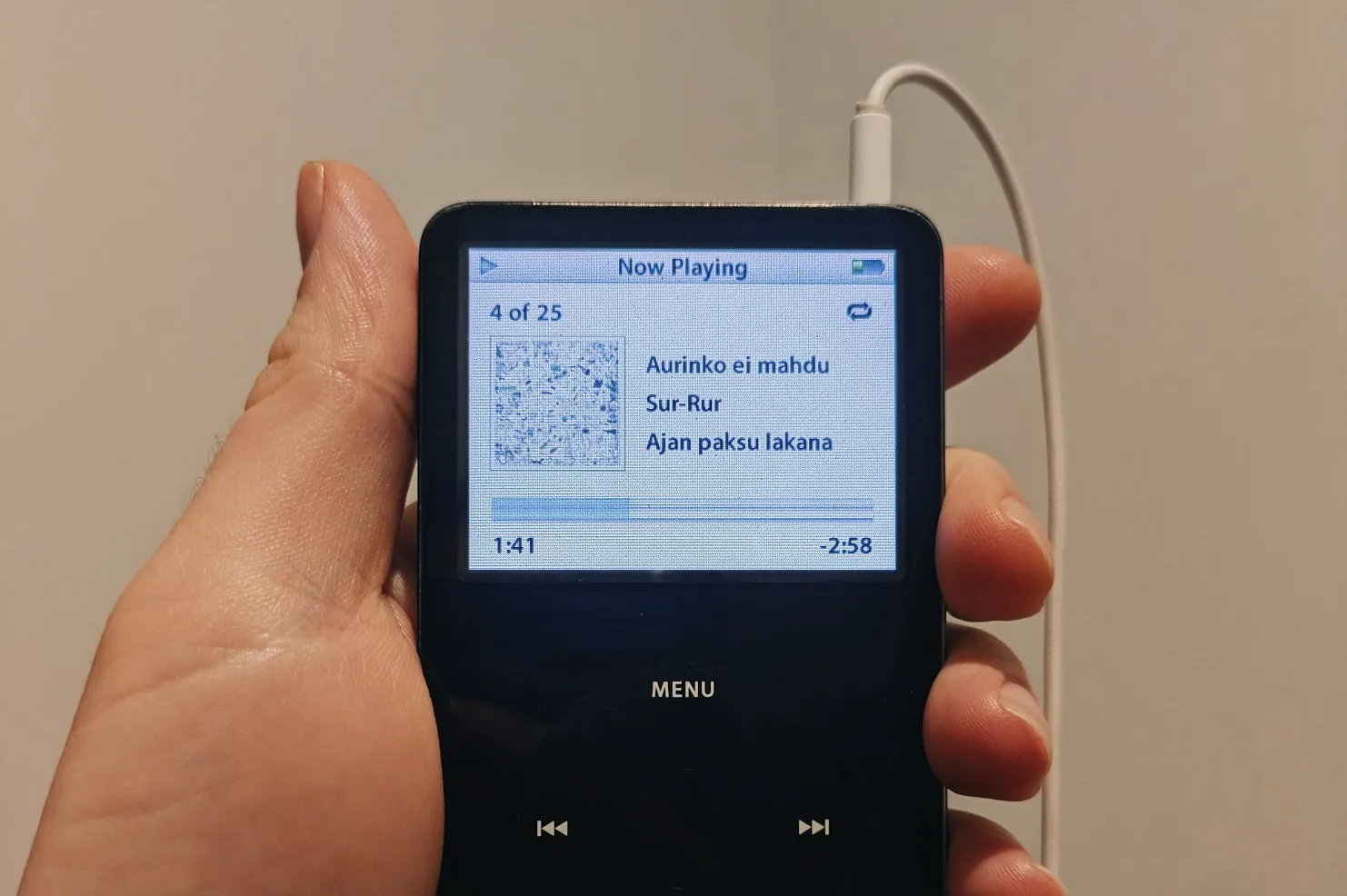
Enjoying the fruits of my labor
Lately, I’ve been getting back into buing actual CDs and ripping them to my music library. This was sparked by re-discovering my old iPod Classic, which I used to use extensively before streaming services took over. Back then, my muisc library was on one computer, but now I have multiple computers and I want to keep my music library in sync without a lot of hassle.
I was looking into NAS, cloud storage, and other solutions, but for what I needed they all felt like overkill. I just wanted to use my Mac as the source and then sync the music library to my Linux computer occasionally. Something similar to git, but for files. Turns out, there’s a great tool for this already built into most operating systems.
Setting up SMB and rsync
I had never used rsync before and to my surprise, it turned out to be exactly what I needed. It’s a tool used to sync files and directories between two locations, either on the same machine or over a network. This makes the process of syncing more delibarete so I don’t have to worry about corrupted files like with some cloud solutions.
- Make the library accesible on my network: The music library needed to available on my network, so that the other computer can access it. On my Mac, I enabled “File Sharing” to spin up an SMB share. I needed to enable “Windows File Sharing” to make SMB work on Linux, which wasn’t entirely obvious.
- Sync library to the other computer: On the linux computer, I can now mount the SMB share and use the
rsynccommand to sync the music library.
rsync -av --delete --exclude='.DS_Store' --exclude='.localized' "/path/to/smb/share" "/path/to/music/library"-astands for “archive” mode, which preserves file permissions and timestamps.-vis for “verbose”, so I can see what’s happening.--deleteoption ensures that any files deleted from the source are also removed from the destination, avoiding duplicates.--excludeoptions are used to skip unnecessary system files that macOS creates.
To make life easier, I stored the command as a shell script. I also piped the output to a log file using tee, which might be useful for debugging.
☀ Note: The music library path should be pointed where the actual music files are, which on macOS is not ~/Music but something like ~/Music/Music/Media.localized/Music/.
Conclusion
The only caveat with this setup is that the SMB share needs to be mounted before running the script and I need to remember to not modify files on the destination computer. Nothing bad will happen if I do, but the changes will be overwritten during the next sync. Overall‚ I’m very happy with the simplicity of this solution and it works for my needs.